GRAMMY Canva Frame Template: A Designer's Guide
There’s a specific kind of excitement that comes with finding a design asset that genuinely solves a problem. You know the feeling—you’ve been wrestling with a layout, trying to get that perfect photo placement, and suddenly you stumble upon a tool that just works. That’s exactly what the GRAMMY Canva Frame Template Add Photo delivers. It’s not just another decorative element; it’s a practical, polished solution for anyone who wants to create professional-looking framed photo designs without spending hours fiddling with layers and alignment.
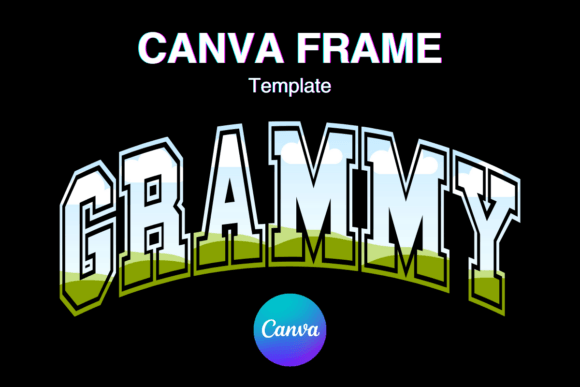
Let’s be clear about what we’re working with here. This is a digital file—specifically, a PDF containing a link to a custom-made Canva frame template. No physical product arrives at your door. No props, no printed materials. What you get is instant access to an editable template that lives inside Canva, ready for you to drag, drop, and customize. The paper size is set at 15×10 inches, though the beauty of a digital template is that you can scale it up or down depending on your project. Need it larger for a poster? Resize it. Want it smaller for a social media post? Adjust accordingly. The template uses a transparent layer, which makes it compatible with vinyl sublimation workflows—a detail that matters more than you might think if you’re creating physical products like custom mugs, t-shirts, or signage.
What Makes This Template Stand Out
The GRAMMY Canva Frame Template has a distinct visual personality. It’s clean, celebratory, and unmistakably tied to that iconic golden gramophone aesthetic. Think about the weight that carries. The Grammy Awards represent excellence, recognition, and prestige. When you incorporate that visual language into your own designs, you’re borrowing a piece of that cultural resonance. The frame itself is designed with careful attention to proportion and detail—it doesn’t feel cheap or overly busy. Instead, it strikes a balance between ornamental and functional, giving your photos a stage without overwhelming them.
What I appreciate most about this template is its versatility. Yes, it screams “music awards,” but its applications stretch far beyond that. Event planners can use it for award ceremonies and recognition nights. Social media managers can create engagement posts where followers “win” something. Photographers can offer clients a unique presentation style for portraits. Small business owners running promotions can frame product photos in a way that instantly communicates value and celebration. The template’s style is modern enough to feel current but classic enough to avoid looking dated in six months.
Practical Applications Across Industries
Let’s talk about where this template actually shines in real-world use. If you’re a content creator building a personal brand, the GRAMMY Canva Frame Template Add Photo becomes a powerful tool for recognition-style posts. Imagine announcing your “fan of the month” or highlighting a customer testimonial inside a frame that immediately signals importance. That visual hierarchy matters—people scroll fast, and a well-framed image with that Grammy-inspired aesthetic stops thumbs.
For entrepreneurs and small business owners, this template works beautifully for marketing materials. Think about end-of-year awards for your team, customer appreciation graphics, or even product launch announcements that need a touch of ceremony. The 15×10 inch size is generous enough for print materials—think table displays at trade shows, framed certificates, or promotional posters. And because it’s a Canva template, you don’t need Adobe Illustrator or any advanced design software. The drag-and-drop interface means you can have a polished graphic ready in minutes.
Crafters and hobbyists will find this particularly useful for personalized gifts. That transparent layer is key here—it means you can easily integrate the frame into sublimation projects. Want to create a custom award for your book club? A recognition frame for a family member’s achievement? A playful “winner” graphic for a party? The template handles all of it without requiring you to understand complex design principles.
Working With the Template Effectively
Here’s some practical advice from someone who’s spent more time than I’d like to admit inside Canva. First, when you open the template link, take a moment to explore the layers before you start editing. Understanding how the frame is constructed helps you make smarter customization choices. The transparent background is your friend—use it to stack the frame over different colored backgrounds, photographs, or textured surfaces without worrying about awkward white edges or mismatched backgrounds.
Second, think carefully about your photo selection. A frame like this has a specific personality, so the images you place inside it should complement that energy. High-contrast photos with clean compositions tend to work best. A cluttered, low-resolution image inside an elegant Grammy-style frame creates visual tension that undermines both elements. Choose photos that feel intentional and well-lit.
Third, consider your font pairings if you’re adding text. The frame does heavy visual lifting, so your typography should support it rather than compete with it. A clean sans serif font for headers and a simple serif or sans serif for body text usually strikes the right balance. Avoid overly decorative script fonts or handwritten fonts in this context—they can muddy the design when paired with such a distinctive frame style. Keep the focus where it belongs: on the framed image and the message you’re communicating.
Understanding the Digital File Format
One important detail worth emphasizing: this is not a PNG or SVG file. It’s an editable Canva template. That distinction matters for your workflow. If you’re used to downloading image files and dropping them into your projects, this works differently. You’ll receive a PDF with a link that opens directly in Canva, where the template becomes fully editable. This is actually an advantage for most users—Canva’s interface is intuitive, collaborative, and accessible from any device with a browser. You can share the design with team members, make edits on the go, and export in multiple formats when you’re finished.
The template is designed for vinyl sublimation compatibility, which opens up commercial possibilities. If you run a small business creating custom products—awards, plaques, personalized gifts, event decorations—this template integrates into that production pipeline. The transparent layer ensures clean cuts and transfers, which translates to professional-looking finished products.
Making the Most of Your Investment
At the end of the day, the GRAMMY Canva Frame Template Add Photo is a design asset that punches well above its weight. It brings a level of visual sophistication to projects that might otherwise look generic or amateurish. Whether you’re building a brand identity around celebration and recognition, creating social media graphics that demand attention, or producing print materials for events and promotions, this template gives you a polished starting point that you can make entirely your own.
The real value isn’t just in the frame itself—it’s in the time and frustration it saves you. Instead of building something from scratch, you start with a professionally designed foundation and focus your energy on the creative decisions that matter most: which photo to feature, what message to pair with it, and how to make the final piece connect with your audience. That’s where good design lives, and tools like this template make it accessible to everyone, regardless of their technical skill level.